Subscribe:

Ads 468x60px

Showing posts with label password. Show all posts

Friday, August 3, 2012

Complete XAMPP setup in Windows


Complete Setup Steps for Linux Boxes (Please refer to previous post)
XAMPP= (X-Cross Platform, A-Apache, M-Mysql, P-PHP and P-Perl)

Here is step by step guide to install XAMPP in Windows environment from Scratch.
1. Downlaod  latest version of XAMPP from here. 
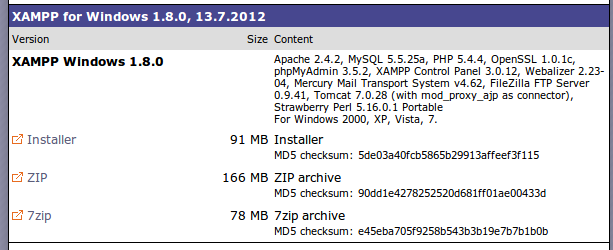
Downlaod


2. I am using Installer version(.exe file) of XAMPP to install it to windows.It will be easy for Newbies to install with installer version of XAMPP.Once downloaded click on installer.you get following screen. select the language and click on OK.

Complete XAMPP setup in Linux


What is XAMPP ?
XAMPP is an easy to install Apache distribution containing MySQL, PHP and Perl. XAMPP is really very easy to install and to use - just download, extract and start.

This guide will provide you step by step to process to setup XAMPP in your Linux machine and configure it to run a website on localhost environment.

Step 1.) Download appropriate Xampp release (preferably latest).
 (Attention: If you download these files on a Windows system and you're running McAfee virus scanner you may get a false positive virus warning. This is a problem with McAfee and gzip-compressed files, it should be ignored.)

Step 2.) After downloading simply type in the following commands:
      (For installing any application at linux you need to Root access of the computer. In Ubuntu by default the root       account is not enabled.If you are installing it on ubuntu then you need to ebable Root access for it by following command. Open your terminal and type following and invoke sudo passwd root)
  1. Go to a Linux shell and login as the system administrator root:
    osao@osao-laptop:~$ su

  2. Extract the downloaded archive file to /opt: root@osao-laptop:/home/osao# tar xvfz xampp-linux-1.8.0.tar.gz -C /opt
    Warning 1: Please use only this command to install XAMPP. DON'T use any Microsoft Windows tools to extract the archive, it won't work.
    Warning 2: already installed XAMPP versions get overwritten by this command.
That's all. XAMPP is now installed below the /opt/lampp directory.